
Software · File manager for macOS
Oliver
Three folders, your own colours, nothing behind your back. A native file manager for the Mac with up to three panes side by side, copies that wait their turn in a queue, and AI that reads a file only when you say so.
Oliver opens up to three folders in one window, each with its own tree, tabs, path bar and colour. A thin strip marks every pane and the one you are working in gets a stronger one, so you always know where ⌘C and ⌘V will land. Every change can be undone.
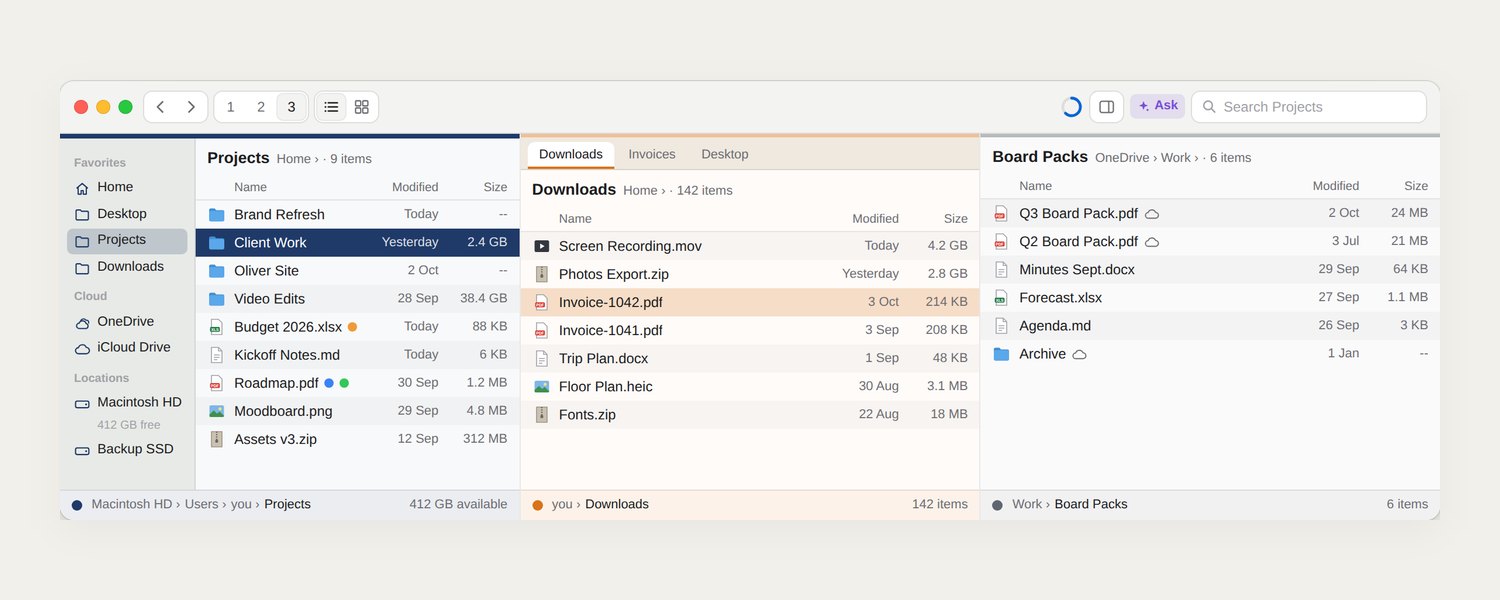
Projects in dark blue, Downloads in orange, a OneDrive folder in grey — each pane with its own tabs, tree and path bar.
One window. Up to three folders.
- Tabs in every pane. ⌘T opens one, up to 30 per pane, and they come back after a relaunch.
- Swap and mirror. ⌘U swaps the panes; ⌥⌘U shows the same folder in the other one.
- Drag anywhere. Between panes, tabs, windows, trees and path bars, and to and from Finder.
- Workspaces. Save a layout — panes, folders, tabs, view and colours — and get it back with ⌥⌘1 to 9.
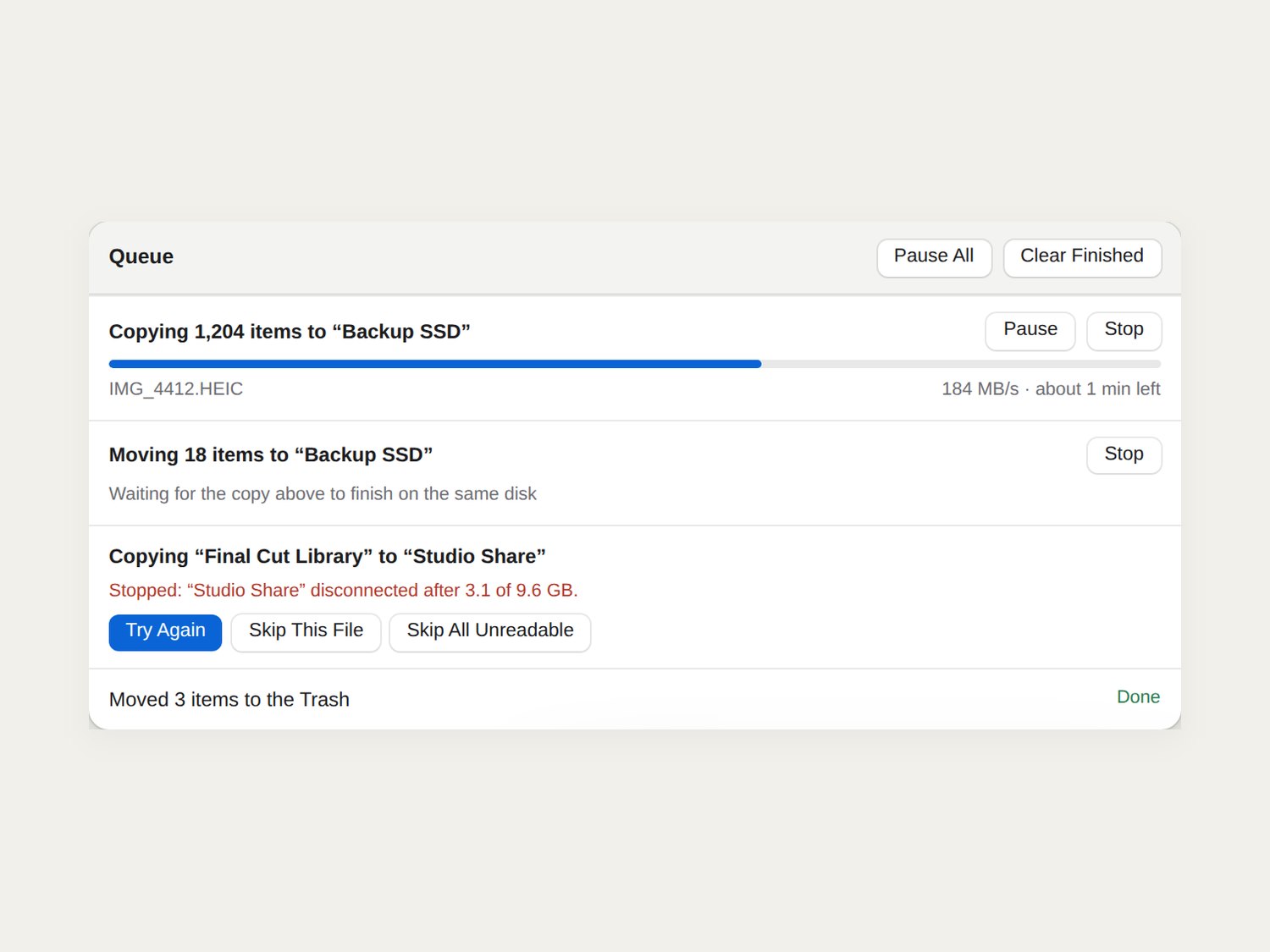
A running copy, a move waiting for the same disk, and a stopped job with Try Again and Skip.
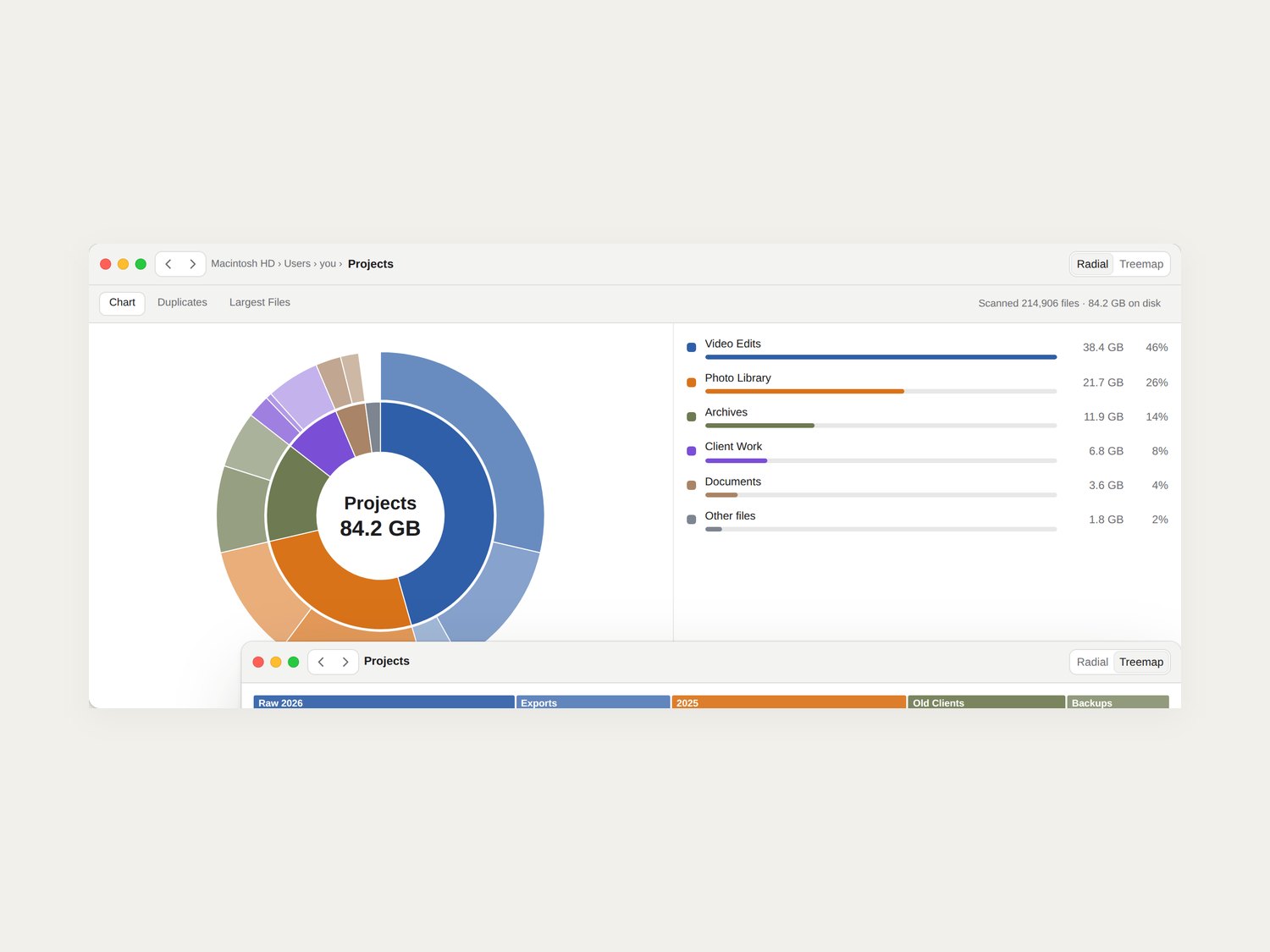
A radial chart of a folder with a size-sorted list beside it, and the same folder as a treemap.
Big copies wait their turn. Mistakes don’t stick.
Every copy, move and Trash goes into the Queue, with the current file, its speed and the time left. Large jobs to the same disk run one after another, so two copies to the same share don’t fight.
- One failure stops one job. Try Again, Skip This File or Skip All Unreadable, and the finished job lists what it skipped.
- Stop cleans up. A stopped copy removes the partial file it left behind.
- Undo almost everything. Moves, copies, Trash, renames, tags and Organise, in any window.
- Quit mid-copy? On the next launch Oliver finds the unfinished items and asks what to do.
Find what’s filling the disk, then free it
Space Explorer scans in its own window while you keep working, as a radial chart or a treemap. Hover for a size, click to go in, Trash what you don’t need — ⌘Z brings it back. Duplicates and Largest Files live in the same window, and cloud-only files are never downloaded just to measure them.
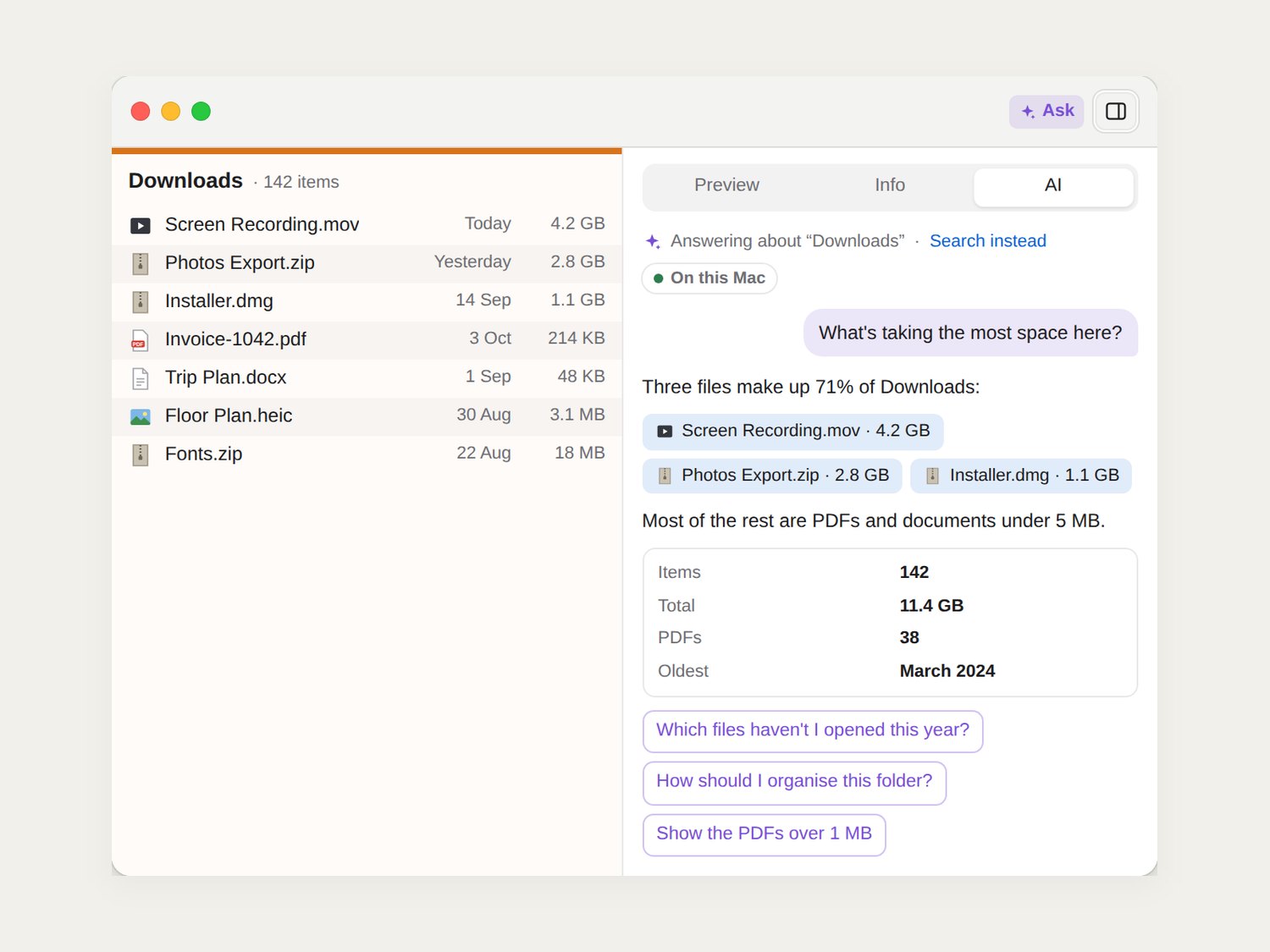
The side panel’s AI tab answering what is taking the most space in Downloads.
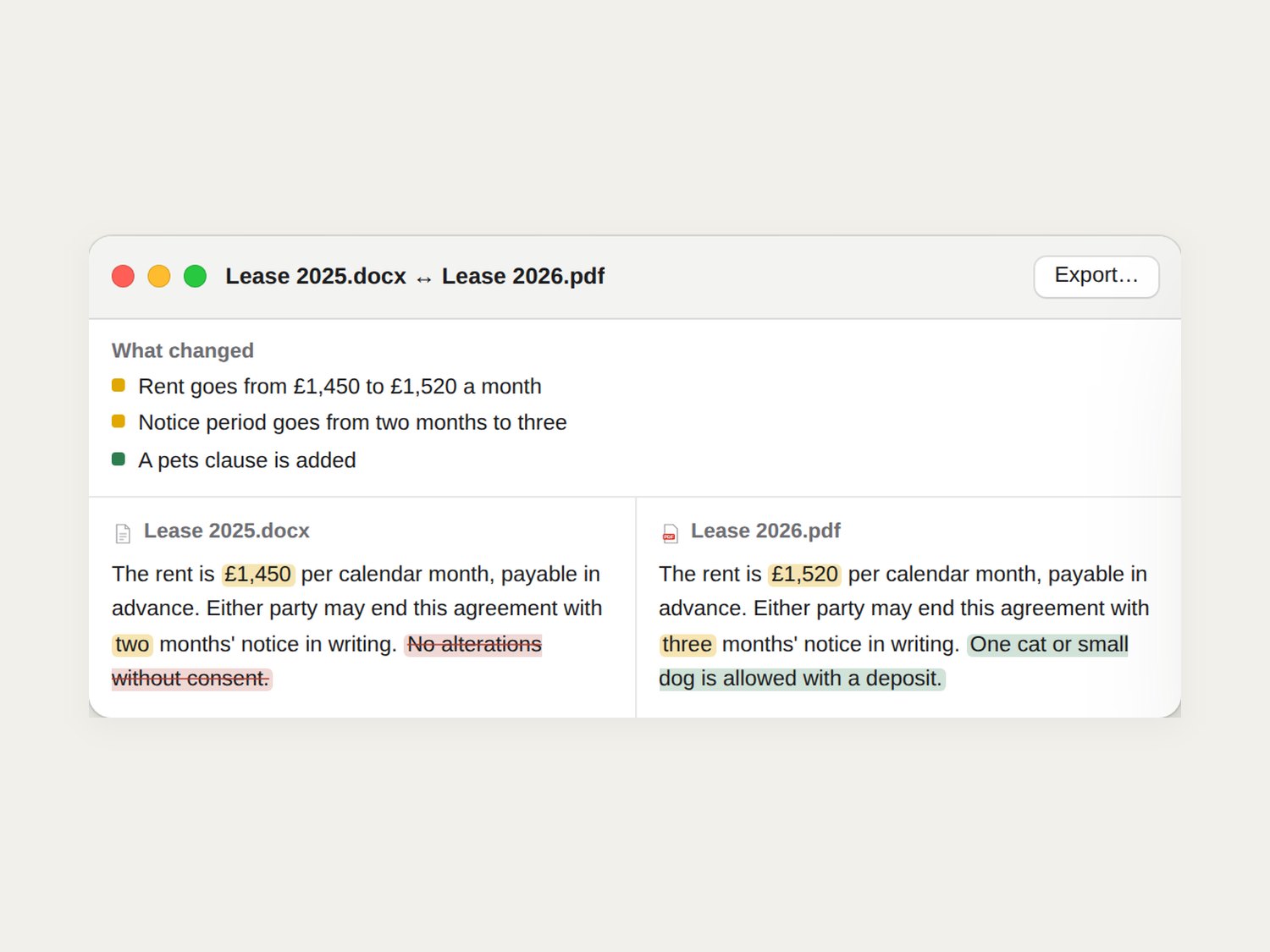
What changed between two lease drafts — a Word file against a PDF.
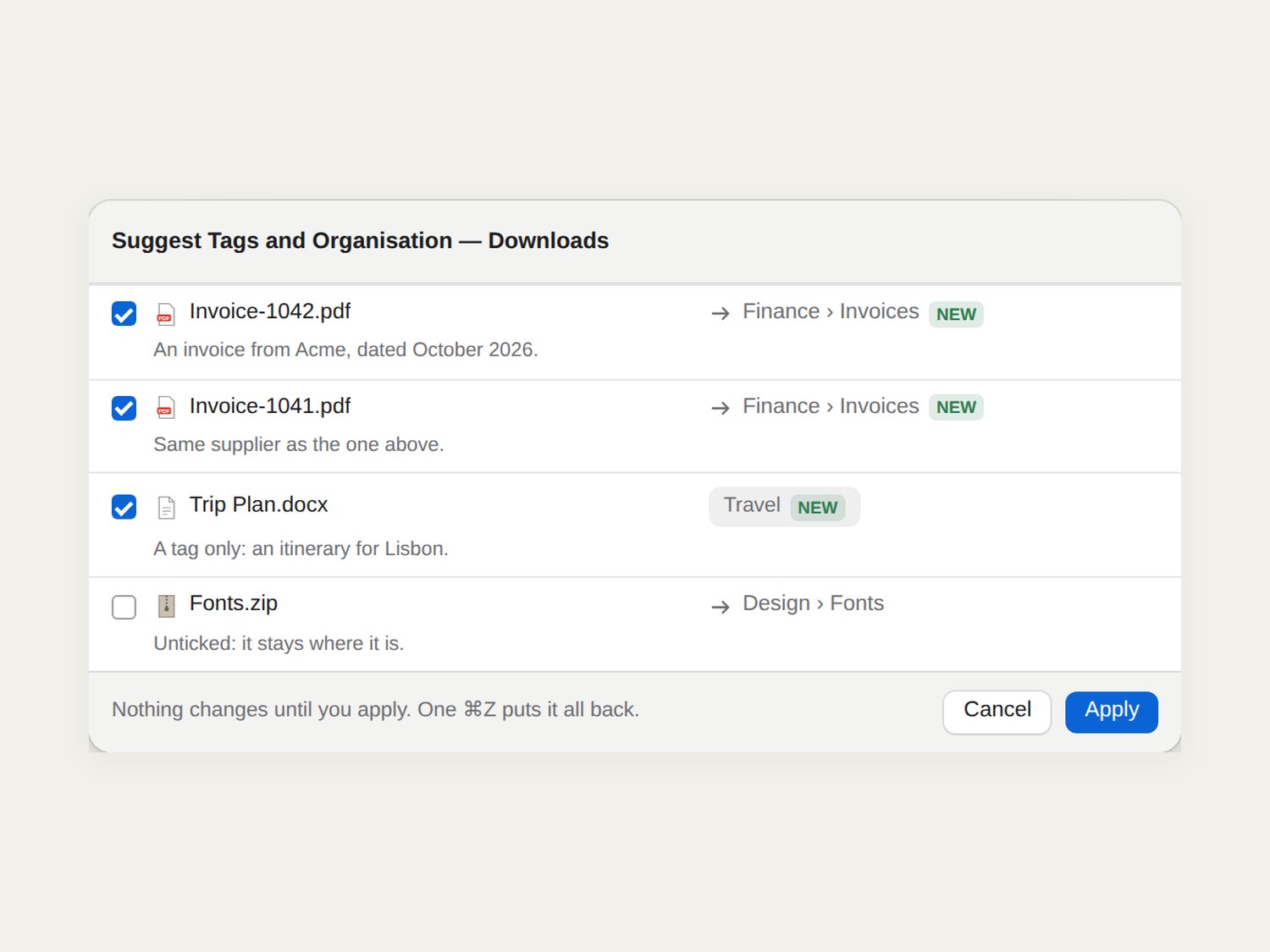
Suggested tags and folders for Downloads. Nothing moves until you press Apply.
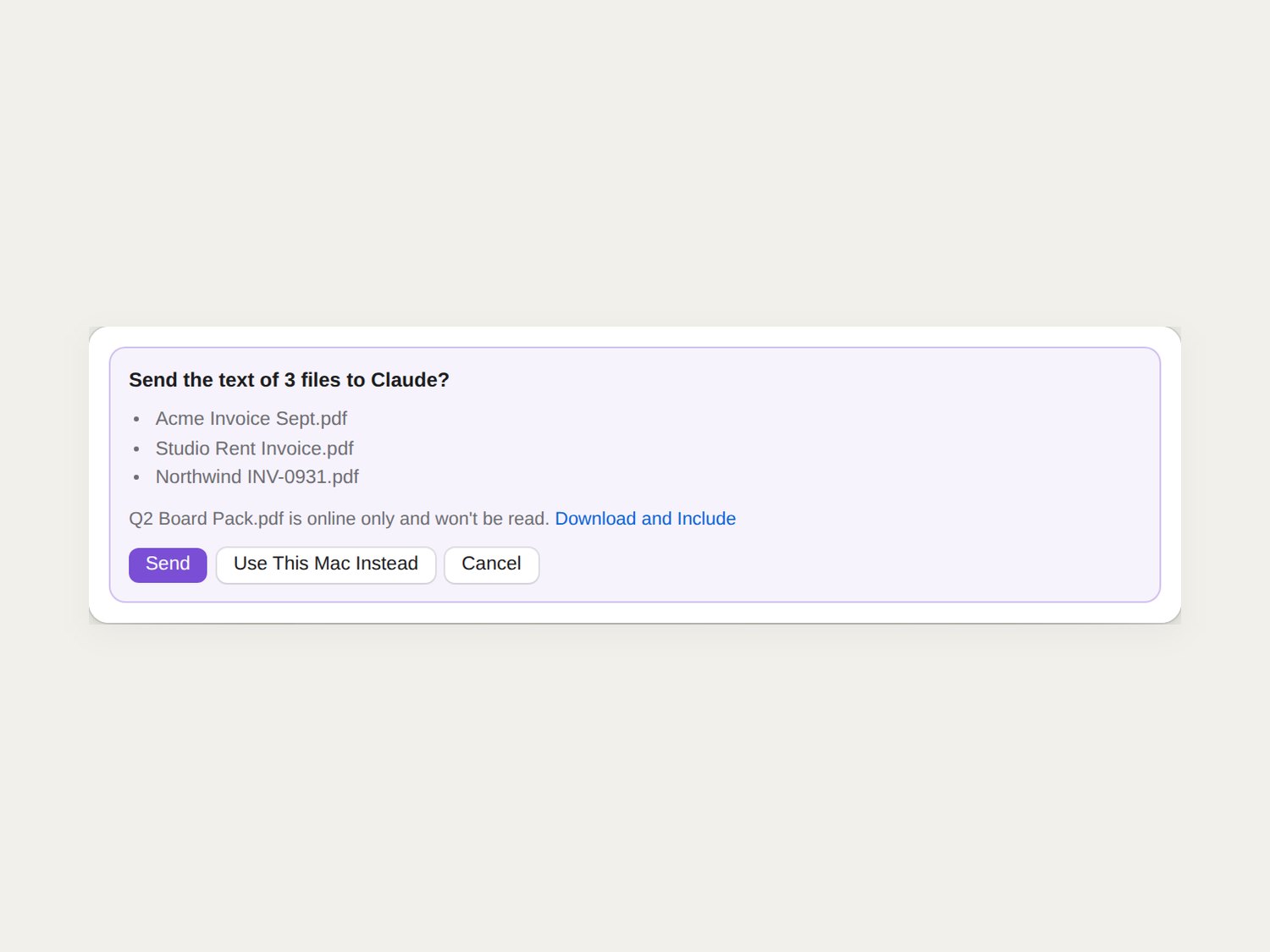
A card before any file text goes to a cloud provider. Online-only files are left out unless you say otherwise.
AI that asks before it reads
Each tool runs only when you start it, can be stopped, and never changes a file without a preview and your OK. Normal search never uses AI.
- Ask. Turns a question into an ordinary Spotlight search, with the filters left as editable chips.
- Summarise. PDF, Word, Pages, PowerPoint, Excel, Markdown and scanned images, kept per document.
- Compare. Two versions word by word — worked out on the Mac, without calling a model when the texts are identical.
- Organise. Suggested tags and folders, reviewed before anything moves.
- Never readCloud-only files, other apps’ data such as Mail or Safari, and whole folders.
- Never sent without a cardFile text goes to a cloud provider only after you press Send.
- Never kept in plain sightAPI keys live only in the macOS Keychain.
- Never in the backgroundNo AI runs unless you start it, and each run can be stopped.
Built for the keyboard, and built properly
Finder’s shortcuts work as you expect, and Oliver adds its own for panes, tabs, filters, folder sizes and the AI tools. It is written in Swift 6 with SwiftUI and AppKit, contains no third-party code, and runs 4,183 automated tests on every change.
The screens on this page are taken from the product site’s own drawn mock-ups, which use sample files.