 Paws
Paws1What Paws shows#
Paws turns Claude Code's sub-agents into a pack of dogs. Each Claude Code session is a yard. The session itself is Pelayo, a Border Collie, who stays in the yard. Every time the session sends a sub-agent out, a dog appears for it. The dog wags while the agent works, sits while it waits on a shell command, comes back with a one-line report, and falls asleep a little later. You see all of this from the menu bar, without leaving the app you are working in.
Paws gets its information from a small Claude Code plugin called the companion, which you install when you press Connect. Sessions that started before you connected need a restart to show up.
2The /paws command in Claude Code#
Paws adds one command to Claude Code: /paws. Type it in the message box of any Claude Code session where the companion is loaded, in the desktop app's Code tab or in the terminal (claude 2.1.268 or later). There is nothing to set up per project: once you have pressed Connect, the companion loads in every project, unless you turn it off for one (see below).
| You type | What happens | The reply |
|---|---|---|
/paws | Opens Paws, or brings it forward if it is already running, and tells you this session's count. | "Paws: 2 out · 1 back · 3 napping" |
/paws status | Only replies. It opens nothing, so it is the quick way to check that the companion is loaded in this session and where its file is. | "Paws: 2 out · 1 back. Live file: ~/.claude/paws/live/<session>.json" |
/paws pack | Only replies: this project's pack, one line per kind of agent with its dog and why it got it, then how general-purpose agents get theirs. | "designer → Covadonga (Shiba Inu) · your pick" |
/paws followed by anything else, for example /paws agents | Does nothing except show a short hint. | "Unknown option “agents”. Try /paws (opens the Paws app), /paws status or /paws pack." |
What the reply tells you:
- The numbers are for this session only. The menu bar adds up all your sessions.
- "Out" is always there, even at 0. "Back" and "napping" only appear when there are any, so a quiet session simply says "Paws: 0 out".
- If Paws is not installed on this Mac,
/pawssays so: "The Paws app isn't installed on this Mac (open -a Paws found nothing); the pack is still written to …". The companion keeps working and writing the session's file.
When the command is available. In every session that starts after you pressed Connect, or after an update of the companion. A session that was already running needs a restart: in the desktop app start a New session, in a terminal exit claude and run it again.
"/paws isn't a command here" in the desktop app. You may see this warning above the message box when you send /paws in the desktop app's Code tab, even in a brand-new session. It is harmless: the command still runs, and its reply ("Paws: …") appears in the conversation. The desktop app builds its list of commands with a separate, settings-only copy of Claude Code that runs with all hooks turned off, and the companion adds /paws from a hook. So the list misses it, and the menu that pops up when you type / won't suggest it either. Type the whole word and send it. The terminal doesn't have this problem.
Projects where you turned the companion off. If a project has "enabledPlugins": { "paws@skills-dir": false } in its .claude/settings.local.json (section 15), the companion doesn't load there: /paws is not a command in that project, and its agents don't appear in Paws. Remove that line, then start a new session, to bring both back.
What it doesn't do. /paws has no other options. Renaming dogs and every setting live in the app (sections 10 and 12). Which dog each kind of agent gets is decided by the agent files in the project (section 11), not by the command.
3The menu bar#
Paws lives in your menu bar as a small dog face. Next to it you may see a count such as "3 out · 1 back".

- Out is the number of dogs working or waiting, added up over all your sessions.
- Back is the number of dogs that have returned with a report you have not looked at yet. A returned dog keeps counting after it falls asleep, until you see its report.
- When nothing is out and nothing is waiting to be read, only the dog face shows.
A report counts as seen when the panel is on screen with that dog's session selected for one second, when the big window is on screen for one second, when you open that dog in the focus view, or when you click its notification. It also stops counting when the dog goes out again, or when its session ends.
To hide the count and always show only the dog face, turn off "Show dogs out and back in the menu bar" in Settings › General.
Click the dog face to open the dropdown. Click it again, or press Esc, to close it.
4The dropdown#
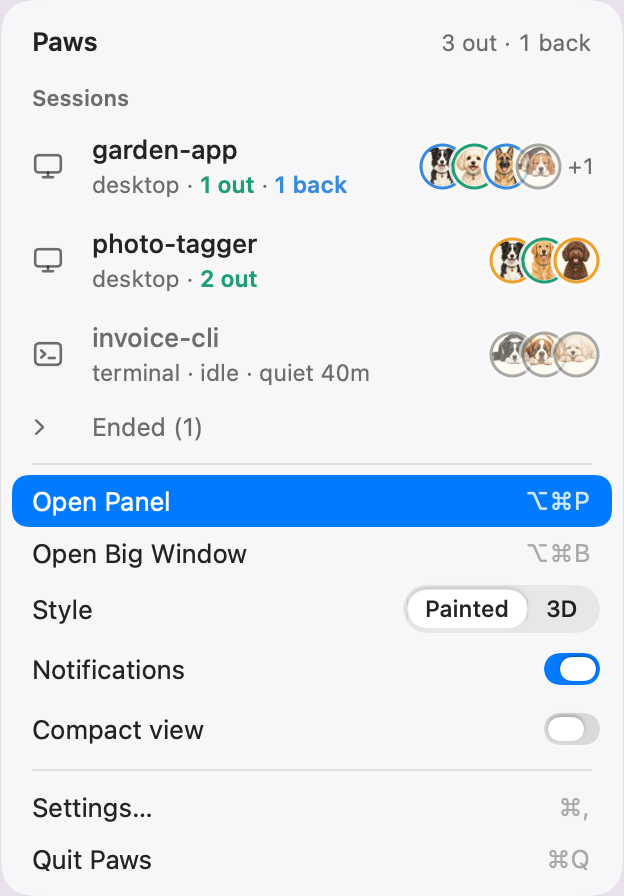
From top to bottom:
- Paws, with "N out · M back" on the right.
- Sessions. One row for each session that is live or quiet. A row shows an icon for where the session runs (desktop app or terminal), the session name, and a line such as "desktop · 1 out · 1 back". The session name is the last folder of the folder it works in. Next to it are small faces of the dogs, with napping ones dimmed. Sessions with dogs out or unread reports come first. Click a row to open the panel on that session.
- Ended (N). A collapsed row. Open it to see up to five sessions that are over, newest first, with "ended 3m ago" or "no news for 1h+". Click one to see its last state in the panel.
- Open Panel (⌥⌘P) and Open Big Window (⌥⌘B).
- Style. Painted or 3D. This changes how every dog is drawn, everywhere.
- Notifications. The master switch for notifications.
- Compact view. The switch for the card in the corner (section 6).
- Settings… (⌘,) and Quit Paws (⌘Q).
If the companion is not installed yet, the first item is "Connect to Claude Code…" and the Sessions list says "Not connected yet".
The two shortcuts ⌥⌘P and ⌥⌘B work from any app. If another app already uses one of them, the dropdown simply shows no shortcut for it. ⌘, and ⌘Q work while Paws is active or its dropdown is open.
5The floating panel#
The panel is a small window with one session's pack. Open it with ⌥⌘P, or with "Open Panel" in the dropdown. Press ⌥⌘P again to hide it.
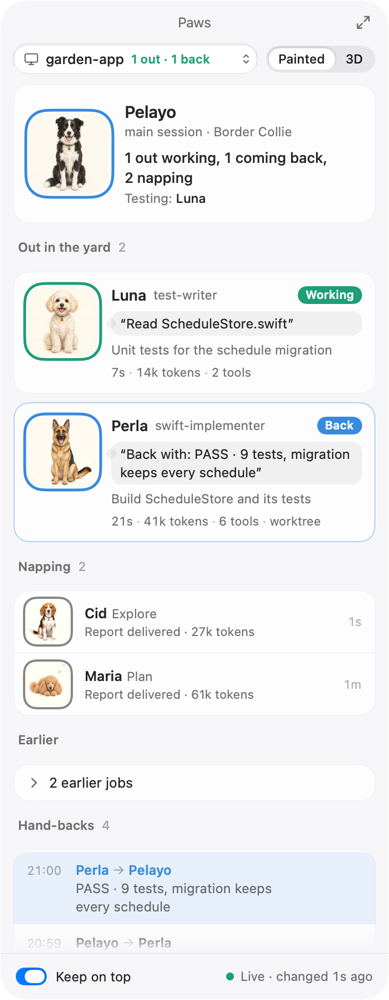
The panel never takes focus. Whatever you were typing in, usually Claude, stays active when you click in the panel. The panel is also mouse-only: you can't reach it with Tab. The keyboard path to it is the dropdown and ⌥⌘P.
From top to bottom:
- Title bar. "Paws" in the middle. The arrow button at the right opens the big window. You can drag the panel by its title bar and resize it from its edges. Paws remembers where you left it. It appears on every desktop and over full-screen apps.
- Session picker. A wide button showing the session name and "1 out · 1 back". Click it to pick another session. Next to it, the Painted / 3D control. The panel shows your last pick while that session is live or quiet. Otherwise it shows the session that changed most recently.
- Lead card. Pelayo, "main session · Border Collie · Opus 5.5" (the model the session runs on), a one-line summary such as "1 out working, 1 coming back, 2 napping", and a "Right now" line grouping the dogs that are out by kind of work (Exploring, Building, Testing, Reviewing, Verifying), for example "Testing: Luna".
- Out in the yard. One card for every dog that is awake, with a count. Each card has the dog's picture, its name, its type (the kind of agent, such as "test-writer"), a status pill (Working, Waiting, Back or Napping), a speech bubble with what it is doing now, its task, and a meta line such as "7s · 14k tokens · 2 tools". A dog that has just come back has a blue edge, and its bubble holds the start of its report. Working and waiting dogs come before dogs that are back, and within each group the oldest is first. With no one out, the panel says "No one out. The agents this session sends show up here."
- Napping. Dogs that are asleep, up to four, newest first. Each row shows the name, type, "Report delivered · 27k tokens", and how long ago it fell asleep.
- Earlier. A single collapsed row such as "2 earlier jobs". Click it to open a list with one line per retired dog: its name, task and report. These lines are plain text. The row only appears when there is something in it. Section 8 says when a dog moves here.
- Hand-backs. The latest four notes passed between Pelayo and the agents, such as "Perla → Pelayo" with the text of the report. Reports are in blue, and very fresh ones have a blue tint.
- Footer. The Keep on top switch on the left, which keeps the panel above other windows. On the right, "Live · changed 1s ago", or "Quiet · last change 12m ago" for a session that has been silent for a while, or "Ended · 3m ago".
Click a card to open the big window with that dog in the focus view. Right-click a dog (or Control-click) for its menu: Rename, Reset Name, Show in Big Window, Copy Report.
The panel's content scrolls under the session picker. New information never moves your scroll position.
Click-through. In Settings › General, "Click through the panel while no one is out" lets mouse clicks pass through the panel to the window below, while the selected session has nothing out and no dog that has just come back. The panel takes clicks again the moment a dog goes out or comes back. ⌥⌘P and the menu still work meanwhile.
6The compact view#
The compact view is a small card in a corner of your screen, about the size of a notification banner. It is for when you want to watch the pack without keeping the panel open. It is off until you turn it on.


What it shows.
- First line. Pelayo's small picture with a status ring, the session name, "1 out · 1 back" (green for out, blue for back), and at the right the faces of the dogs that are out or back, up to four plus "+N".
- Second line. The most recent change in that session. For a dog that came back: "Perla is back: “first line of the report”". Otherwise the name of the dog whose bubble changed last, and that bubble.
- "+1 session". A small chip that appears when other sessions also have dogs out or unread reports. The card shows the busiest session. Click the chip to look at the next one. The card keeps showing it until that session has nothing out and nothing unread.
When it shows. The card shows while the session it is displaying has a dog out or an unread report. It fades away 5 seconds after that stops being true, and fades back in when it becomes true again. It hides while the panel is on screen, because the panel shows the same thing in full. It never marks a report as seen.
What you can do. Click it to open the panel on that session. The app you are working in stays in front. Right-click it for "Open Panel", "Open Big Window" and "Hide Compact View".
To turn it on. Use the "Compact view" switch in the dropdown, or Settings › General › Compact view. In Settings you can also pick the Corner, Top right or Top left. The card sits on the screen that has the menu bar.
7The big window and focus view#
The big window shows every session side by side, and the focus view reads one dog in detail. Open the big window with ⌥⌘B, with "Open Big Window" in the dropdown, or with the arrow button in the panel's title bar.
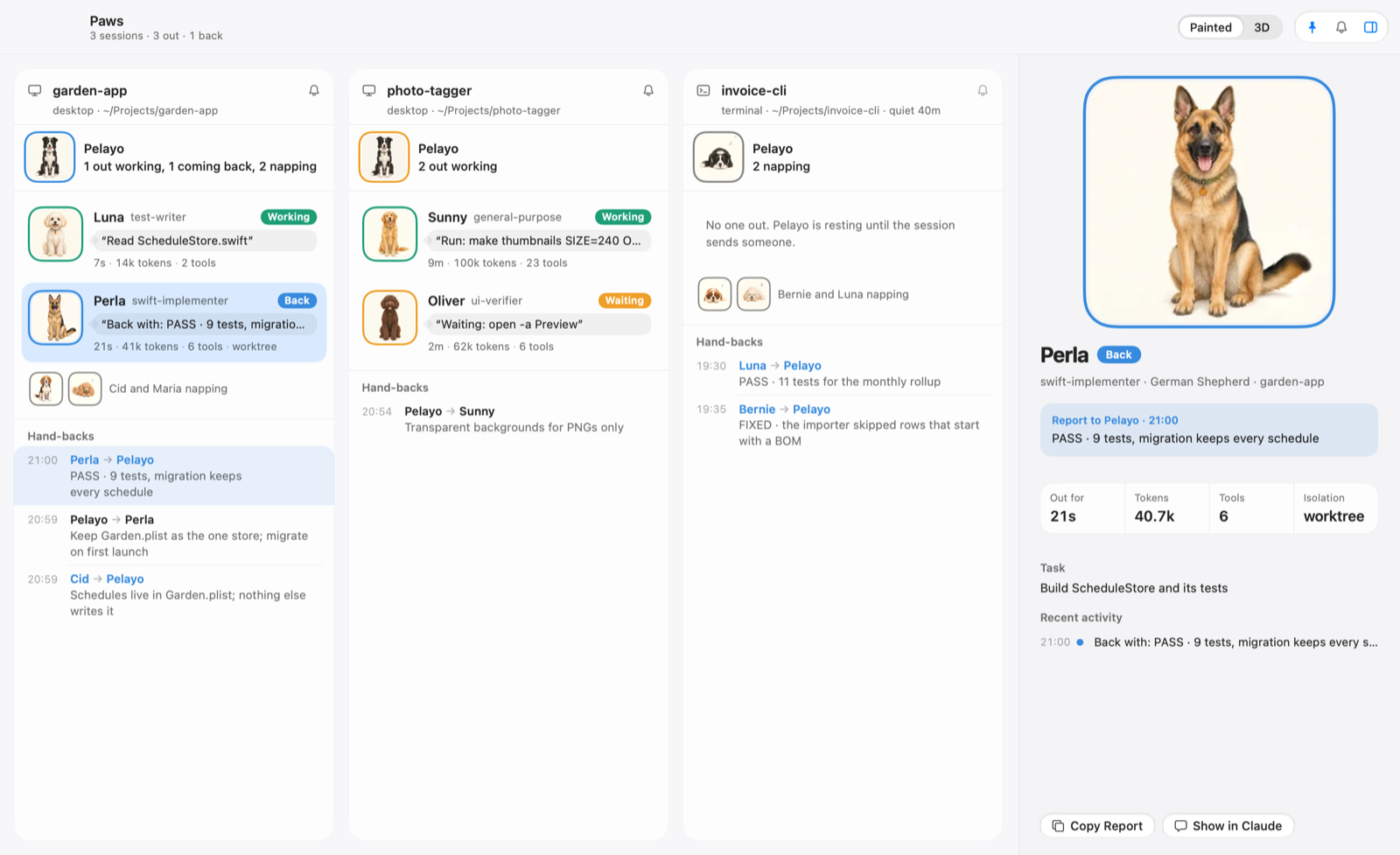
The toolbar has the title "Paws" with a line such as "3 sessions · 4 out · 1 back", the Painted / 3D control, and three buttons:
- Pin. The same as Keep on top for the panel.
- Bell. Opens Settings at Notifications.
- Sidebar. Shows or hides the focus view.
Yards. Each live or quiet session is a column. If there are more than fit, scroll sideways. New sessions appear at the right, so columns don't jump around. A column has:
- A header with the session name, its folder (for example "desktop · ~/Projects/garden-app", plus "quiet 12m" when it is quiet), and a bell. Click the bell to mute or unmute notifications for that session. A grey bell means muted.
- Pelayo and his summary.
- One row for each dog that is awake, with picture, name, type, status pill, a one-line bubble and the meta line.
- A strip of small pictures for the napping dogs, and a line such as "Bernie and Luna napping".
- The three newest hand-backs.
With no one out, a column says "No one out. Pelayo is resting until the session sends someone."
The big window does not list earlier jobs. They are only in the panel.
Selecting a dog. Click a row. You can also use the arrow keys to move the selection and Return to open it in the focus view. Right-click, Control-click, Shift-F10 or Control-Return open the dog's menu.
The focus view. This is the panel on the right side. It shows the dog you picked last. When you first open the window, it picks the dog with the newest unread report, or else the first working dog.
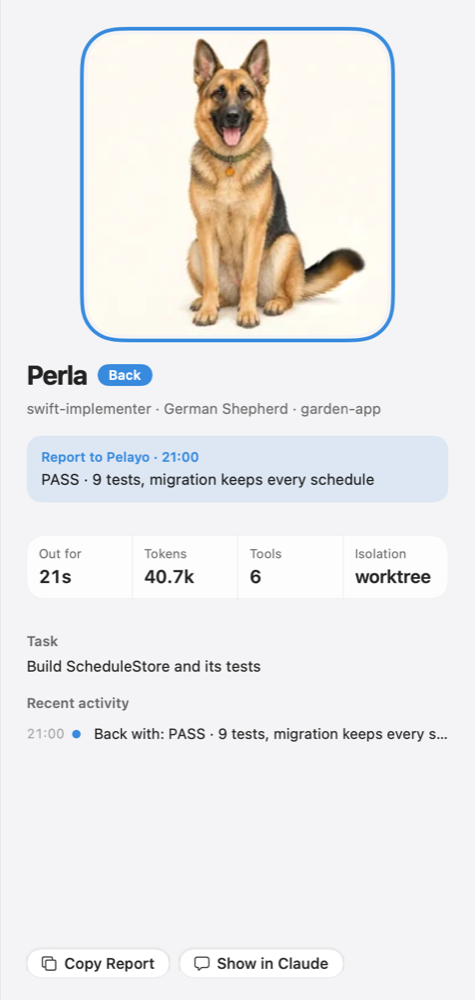
- The picture. While the dog is wagging, a short video of it plays. In every other state you see its still picture. In 3D style the video has a dark studio background.
- Name and pill, and a line such as "swift-implementer · German Shepherd · garden-app".
- The report. A box "Report to Pelayo · 21:00" with the report. If the dog has no report yet, you see its bubble instead.
- Stats. Out for (how long it has been out, such as "3m 20s"), Tokens, Tools, and Isolation ("none", or for example "worktree").
- Task. What it was asked to do.
- Recent activity. The last six things it said, newest first, with times. Paws builds this list while it is running, so a dog you see for the first time starts with its current bubble only.
- Copy Report copies the report text. It is greyed out until there is a report.
- Show in Claude brings the Claude desktop app to the front. It can't pick the session for you, and it is hidden for terminal sessions.
If a dog you are looking at leaves its yard, the view keeps its last state and adds "(gone from the pack)" until you pick another dog.
8Dogs and statuses#
Every dog has one of four statuses. The status shows as a word on a pill, and as the colour of the edge around its picture.
| Status | Colour | What it means | What you see |
|---|---|---|---|
| Working | Green | The agent is busy. | The dog wags. |
| Waiting | Amber | The agent is waiting on a shell command. | The dog sits still. |
| Back | Blue | The agent has returned with a report. | The dog wags, and its bubble holds the report. |
| Napping | Grey | The agent is finished. | The dog sleeps, with a slow breath and floating z's. |
Pelayo follows the pack: Back when a dog is back, Waiting while dogs are out, and Napping when everyone sleeps. While Claude works on your request by itself, with no agent out, Pelayo is Working, the lead card says "Working on your request", and the session reads "working" instead of "idle" in the dropdown and the panel.
The model. Next to each dog's type you see the model it runs on, such as "general-purpose · Fable 5.1". An agent you start on another model than the session's shows that model; the others show the session's. Sessions from a companion older than 0.3.1 show no model.
A dog stays in Back for 20 seconds, then falls asleep. The falling asleep takes about three seconds. After that it is Napping, and it stays in the Napping list. A report waits for you. The menu bar keeps counting it as "back" until you have seen it, even after the dog is asleep.
Napping dogs move to Earlier (a collapsed row in the panel) when they have slept for 10 minutes, when more than four dogs are napping and they are among the older ones, or when a new dog takes their name.
Names and numbers. Each dog gets a name from its breed. A breed has one name, except Golden Retrievers (Sunny, Goldie and Toby) and Saint Bernards (Bernie and Brandy). A new dog takes the first name of its breed that no awake dog of that breed already has. So you only see a number, such as "Sunny 2", when more dogs of one breed are out at the same time than the breed has names. Two Dalmatians out at once, for example, are "Stella" and "Stella 2". A napping dog does not hold its name. If a new dog of the same breed goes out, it takes the name and plays a three-second waking-up before it starts to wag, and the sleeper moves to Earlier.
Reduce Motion. If you turned on Reduce Motion in macOS, the dogs hold still and nothing fades.
9Notifications#
When a dog comes back, Paws can show a notification such as "Cid is back", with the session and kind of work ("garden-app · Explore") and the report as the text. It carries the dog's face. Notifications are grouped by session.
Paws sends one when all of these are true:
- Notifications are on. This is the switch in the dropdown and in Settings › Notifications.
- The session is not muted.
- If "Only while the panel is hidden" is on (it is by default), the panel is not on screen. If the panel is already showing the dog, you don't need a banner.
Paws only notifies for dogs that come back while it is running. Dogs that were already back when you started Paws don't send one.
Per session. Each session has its own switch, in Settings › Notifications › Per session, and as the bell in each big-window column. Sessions that run only in a terminal start muted. Sessions in the desktop app start with notifications on.
Clicking a notification opens the big window with that dog in the focus view, and counts its report as seen.
Allowing them in macOS. The first time Paws is about to notify you, macOS asks for permission. Choose Allow. If you said no, or want to change the banner style or sound, open System Settings › Notifications › Paws. Settings › Notifications in Paws shows "Notifications are off for Paws in System Settings" with an Open… link when that is the reason you see nothing.
10Renaming dogs#
You can give any of the dogs a name of your own. The name belongs to a slot of a breed, not to one agent. If you rename Cid to Rocky, every Beagle that goes out in any session is Rocky, now and later. Claude Code sees the new names too, so they appear in the reports and notes between agents.
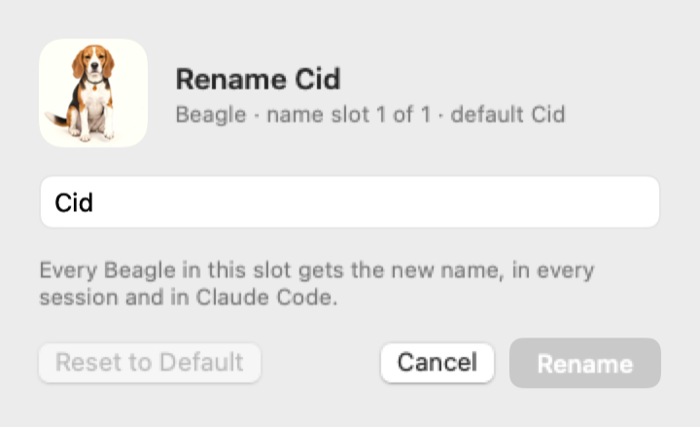
- Right-click a dog in the panel, the big window or the focus view.
- Choose Rename “Cid”….
- Type the new name and press Return, or click Rename.
The new name shows everywhere at once. To go back, choose Reset Name to “Cid” in the same menu, or Reset to Default in the rename window. A dog that its session named itself can't be renamed in Paws. The menu says "Named by its session".
Name rules, in plain words:
- It can't be empty, and it can be at most 24 characters.
- Use letters, numbers, spaces and punctuation. No line breaks or tabs.
- It can't end in a space and a number. Paws adds "2", "3" for later dogs of the same slot.
- It must be different from every other dog's current name, with or without capitals and accents.
- It can't be the default name of another dog, so a reset never makes two dogs share a name.
If a name breaks a rule, the sheet tells you which one, and the Rename button stays off.
You can also edit names in Settings › Dog names, one field per name, with a reset button for each row and Reset All Names… at the bottom. Leaving a field empty resets that name.
11Choosing which dog an agent gets#
Each kind of agent in a project gets one breed, and so one dog. The companion decides when a session starts. It goes through four rules and the first one that applies wins. Agents whose kind says nothing about the job, mostly general-purpose, get their dog from their task instead (below). Type /paws pack in a session to see the result for that project.
- You choose. Add a line
paws-breed:to the agent's file, with one of these keys:shepherd,aussie,maltipoo,water,beagle,golden,saint,poodle,dalmatian,husky,shiba,bernedoodleorwhitegolden. The collie is Pelayo, so it can't be chosen. An unknown key is ignored. - The agent's name. The name contains one of these words.
If the name has Dog implement, builder, coder Perla, German Shepherd review Jaime, Australian Shepherd test Luna, Maltipoo verif, qa, or starts with ui Oliver, Spanish Water Dog ExploreCid, Beagle general-purposeSunny, Goldie and Toby, Golden Retrievers rescue, codex Bernie and Brandy, Saint Bernards Plan, plannerMaria, Poodle runner Christian, Husky security, audit Stella, Dalmatian A plugin's agents are checked without the plugin's name in front, so the Crew plugin's
crew:plannercounts as a planner andcrew:revieweras a reviewer. - The words in its description. The description line of the agent file, matched at the start of a word and in this order:
If the description has Dog review Jaime test Luna verif, qa, quality Oliver implement, build, coder, "write code" Perla debug, rescue, stuck Bernie and Brandy plan, planning Maria explore, search, find Cid - A spare dog. Agents that none of the rules matched take the five spare dogs in this order, sorted by agent name: Dalmatian (Stella), Husky (Christian), Shiba Inu (Covadonga), Bernedoodle (Pedro) and White Golden Retriever (Niebla). A breed you chose with
paws-breed:is skipped. With more than five such agents, the list starts again, and two agents then share a breed.
Where the companion looks: the agent files in the project's .claude/agents/ folder, the ones in your own ~/.claude/agents/, and the built-in agents Explore, general-purpose and Plan. The project's file wins when both have the same agent.
Spare dogs stay put. Once an agent has a spare dog in a project, it keeps that dog in every session of that project. Adding or removing other agents never moves it. An agent that shows up later gets the first spare breed nobody in that project uses yet. Another project works out its own dogs, so the same spare dog may be a different agent there. Your choice with paws-breed:, the name rules and the description rules apply at every session start and win over a spare dog.
An example agent file that asks for the Husky:
---
name: docs-writer
description: Keeps the docs up to date
paws-breed: husky
---
Changes to agent files take effect in the next session you start.
Most agents Claude sends out are general-purpose: one kind of agent for every job. Their task says what the job is ("Designer: iPad mockups", "Fable check of the data model", "Apply 17 data model changes"), so for these agents, and for fork agents and plugin agents no rule knows, the companion reads the task when the agent is sent out:
- A role before a colon that names one of the project's agents: "Designer: …" takes the dog of the project's
designeragent. "Security auditor: …" takes thesecurity-auditor's. - Otherwise, the job in the words. The first word if it is a job verb (apply, fix, implement, review, check, test, verify, design, plan, run, search, debug …; a model name such as "Fable" in front is skipped), else the first job word anywhere. The dog is that of the project's agent for the job (a reviewer, builder, test author …), or the usual breed for it: reviews and checks Jaime, building and fixing Perla, tests Luna, verifying Oliver, planning Maria, running Christian, debugging Bernie, searching Cid, security Stella. A design job takes the project's designer dog; without one it stays a Golden Retriever.
- Nothing found: a Golden Retriever, as before.
The panel shows the job first: "Covadonga · Designer · general-purpose · Opus 5.5".
Getting the most from it in a project. Nothing is required. Two things make the pack clearer:
- Give the project agent files for its jobs (
.claude/agents/reviewer.md,designer.md…), withpaws-breed:if you want to choose their dogs. Then each job has the same dog in every session, whether Claude sends the agent itself or a general-purpose one for that job. - Ask Claude, in the project's CLAUDE.md, to start a general-purpose agent's description with its role: "When you send a general-purpose agent, start its description with the role, for example 'Reviewer: …'."
12Settings#
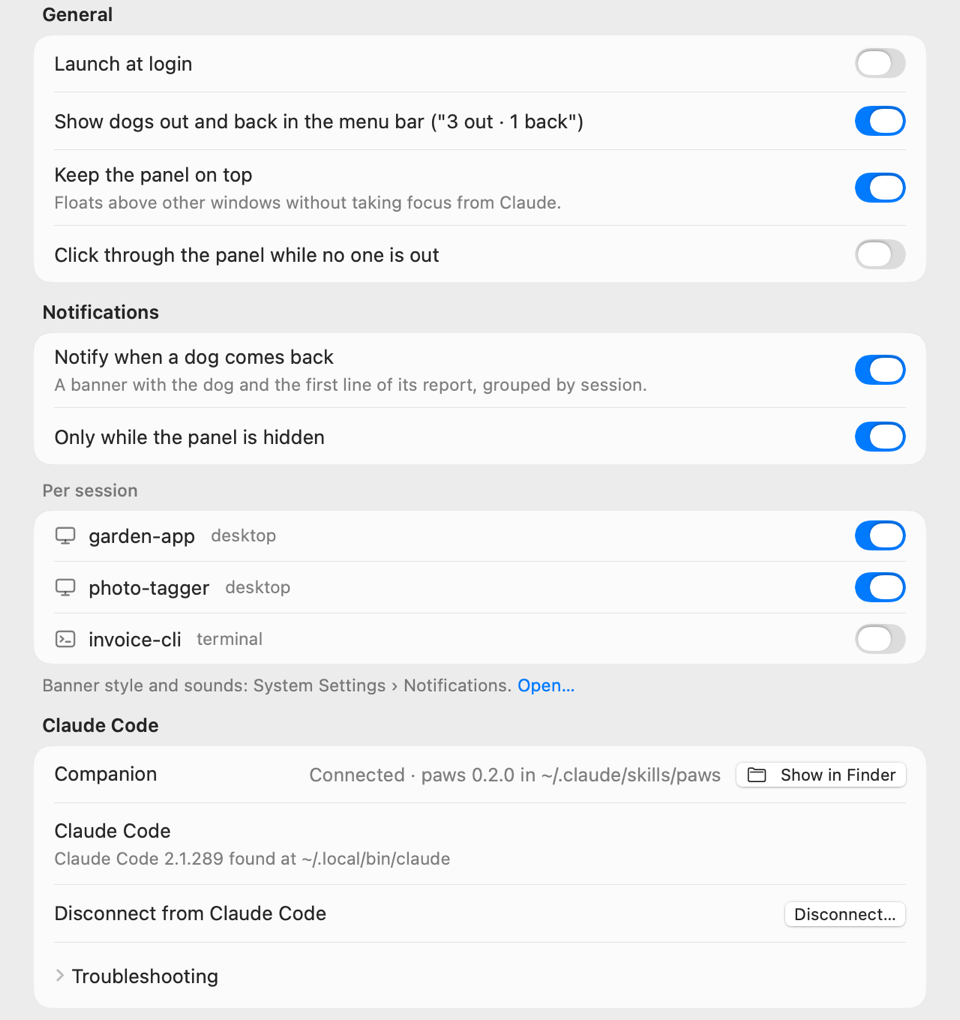
Open Settings with ⌘, while Paws is active, with "Settings…" in the dropdown, or with the bell in the big window. It is a normal window that scrolls, with these sections in order.
Appearance
- Style. Painted or 3D, shown as two thumbnails. It controls how dogs are drawn in the panel, the menu and notifications.
- Theme. Auto, Light or Dark.
- Status ring. On by default. Turns the coloured edge around each dog on or off. With it off, the status still shows as a word on the pill.
Dog names. One row per breed with a field for each name. See section 10.
General
- Launch at login. Opens Paws when you log in. It only works when Paws is in your Applications folder. Otherwise the switch is greyed out and says "Move Paws to Applications to open it at login."
- Show dogs out and back in the menu bar. The count next to the dog face (section 3).
- Keep the panel on top. The same as the panel's footer switch.
- Click through the panel while no one is out (section 5).
- Compact view. The card in the corner (section 6).
- Corner. Top right or Top left.
Notifications
- Notify when a dog comes back. The master switch.
- Only while the panel is hidden.
- Per session. One switch for each session.
- A line about banner style and sounds, with an Open… link to macOS.
Claude Code
- Companion. "Connected · paws 0.4.0 in ~/.claude/skills/paws" with Show in Finder, or "Not connected" with Connect…. When Paws has a newer companion than the one installed, it says "Update available" with Update…. Press it, then restart any running Claude Code sessions.
- Claude Code. Whether Paws found Claude Code on this Mac, and which version.
- Disconnect… Asks "Disconnect Paws from Claude Code?" The companion moves to the Trash. You can tick a box to also move your Paws data (snapshots and custom names) to the Trash. Nothing is deleted outright.
- Troubleshooting. What to do when no session has written yet (section 15).
Live files
- Data folder. Where Paws looks,
~/.claude/paws/by default. Show in Finder, Change… to pick another folder, and Use Default. - Status. For example "Watching 3 sessions · last write 1s ago".
- Forget ended sessions after. 1 hour, 8 hours, 24 hours (the default), 3 days or 7 days.
13Sessions over time#
Paws judges how fresh a session is by when its companion last wrote.
| State | When | What you see |
|---|---|---|
| Live | Written less than 10 minutes ago | Everywhere. Counts in the menu bar. Can notify. |
| Quiet | 10 to 60 minutes ago | Everywhere, with "quiet 12m" next to it. Still counts and can notify. |
| Ended | The session finished, or nothing has been written for an hour | Only in the dropdown's Ended list, as "ended 3m ago" or "no news for 1h+". Doesn't count, doesn't notify. |
| Forgotten | Ended for longer than "Forget ended sessions after" | Nowhere. |
A session whose dogs are all asleep stops writing, so a healthy but idle session goes quiet and then moves to Ended. That is expected. When it starts working again it comes back as live. Forgetting only hides a session in Paws. It never deletes anything.
If you use /clear in Claude Code, the old session ends and a new one appears in its place.
14Privacy#
- What Paws reads. The small snapshot files the companion writes to
~/.claude/paws/live/, one per session. They hold the dogs, short bubbles (file names, and at most 48 characters of a shell command), and one-line reports. - What Paws writes. Only
names.jsonin the data folder (your custom dog names). When you press Connect, it also copies the companion into~/.claude/skills/paws/. It writes nothing under~/.claude/before you press Connect. Anything it removes goes to the Trash. - What it never reads. Your conversations, transcripts, settings or anything else in
~/.claude/. - Network. Paws makes no network connections, and the companion makes none either.
- Your folder. The snapshot files are private to you (permission 0600, in folders set to 0700). A shell command shown in a bubble could contain something sensitive, so Paws never copies the files elsewhere and never writes bubble or report text to its logs.
15Troubleshooting and FAQ#
No dogs appear. Sessions that started before you pressed Connect need a restart. In the desktop app, start a new session. In a terminal, exit claude and run it again. Then type /paws status. It should answer something like "Paws: 0 out. Live file: ~/.claude/paws/live/…". If it doesn't answer, the companion isn't loaded in that session. Open Settings › Claude Code to check the connection. If no session has written two minutes after you connect, the panel shows this advice too.
The desktop app says "/paws isn't a command here". Harmless; the command still runs. See section 2.
How do I keep Paws out of one project? Put this in that project's .claude/settings.local.json:
{
  "enabledPlugins": { "paws@skills-dir": false }
}
Claude Code then doesn't load the companion for that project.
Notifications don't appear. Check these in order. Is "Notify when a dog comes back" on? Is the session muted? Sessions that run only in a terminal start muted. Is "Only while the panel is hidden" on while the panel is open? Did the dog already come back before Paws was running? Is Paws allowed in System Settings › Notifications?
The panel won't move or is in the way. Drag it by the title bar at the top. You can resize it from its edges, and it remembers its place. If it covers something you need, turn on "Click through the panel while no one is out", or press ⌥⌘P to hide it.
The compact view doesn't show. It must be turned on, in the dropdown or in Settings › General. It only shows while the session it displays has a dog out or an unread report, it hides while the panel is on screen, and it appears on the screen that has the menu bar.
Paws says "1 back" but I don't see a report. Open the panel on that session, or the big window. After a second, the report counts as seen.
Why did a dog disappear from the panel? It was napping for 10 minutes, or a new dog took its name, or there were more than four nappers. Look under Earlier in the panel.
Why is there no "Show in Claude" button? It is hidden for terminal sessions, since there is no desktop app window to bring up.
Does Paws work with the terminal version of Claude Code? Yes, with version 2.1.268 or later. Terminal sessions start with notifications muted.
How do I update Paws? Replace it in Applications with the new version and press Update… in Settings › Claude Code if the companion has changed. The steps are in the install guide.
How do I uninstall it? Use Settings › Claude Code › Disconnect…, then drag Paws to the Trash. The steps are in the install guide.